App Store screenshots for a camera app, from a simulator with no camera
Fold Cue records you while you read, so every screen worth showing has a camera picture in it. The iPhone Duo simulator has no camera, and the phone isn't on sale yet. Here is how the screenshots got made, and what I decided not to show.
Apple opened App Store submissions for iPhone Duo apps on 5 October. Screenshots for the Duo are optional for now, and from April 2027 every app submitted will need them. So this week Fold Cue needed screenshots for a phone nobody can buy yet, taken in a simulator that can’t film anything.
For most apps that’s a layout job. For a teleprompter that records you, it’s a problem, because the screens that explain the app are the ones with a camera picture in them, and in the simulator that picture is black.
A black rectangle where the person should be
The first round of screenshots was honest and useless. The script was there, the voice status said it was following, the record button was red, and behind all of it was a black rectangle. It looked like an app that had failed to open the camera, which is the exact opposite of the impression a store page should give.
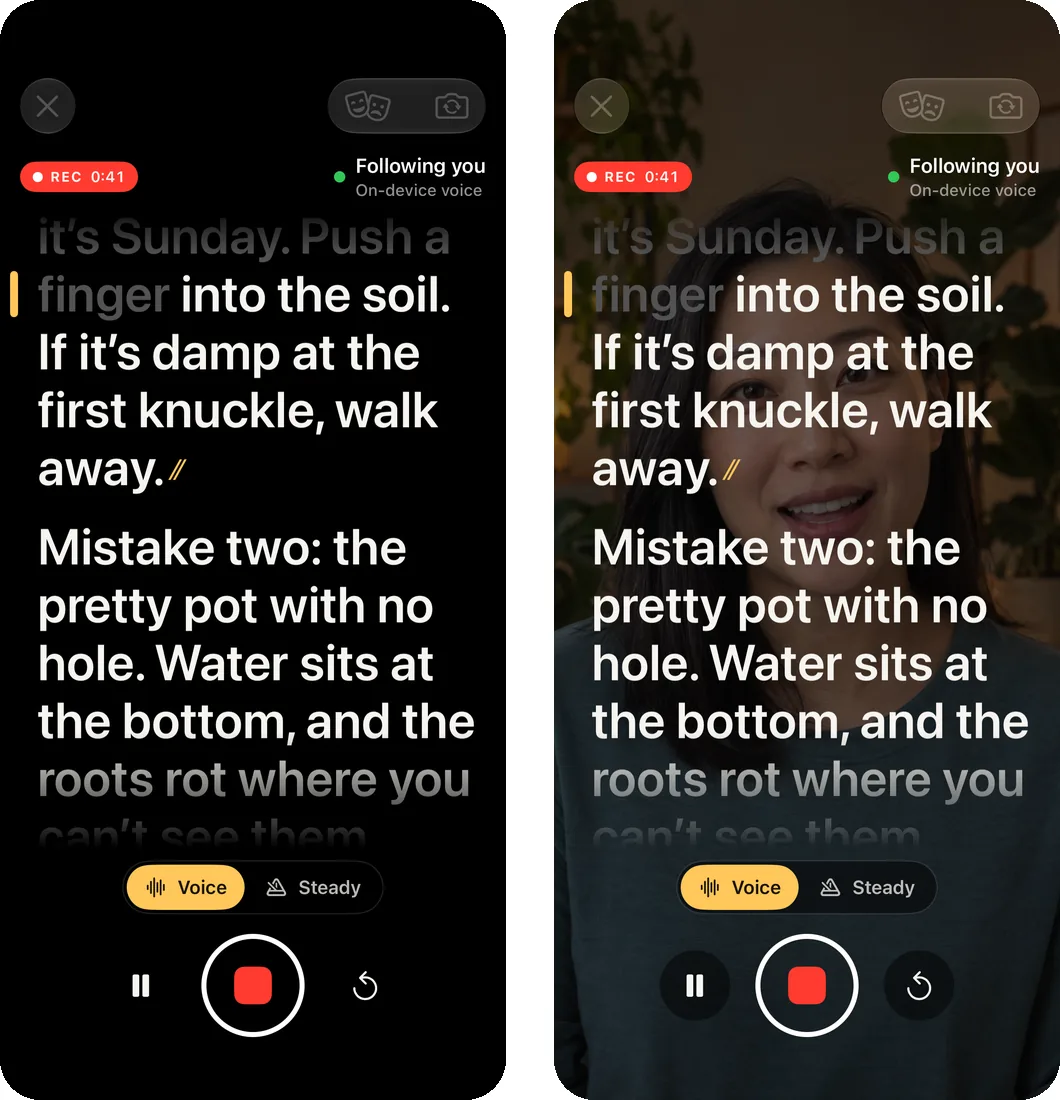
I looked at how the best-known teleprompter apps on the App Store handle it. Most of them show a smiling person behind the script on most of their first screenshots. A few show a person on one or two. Only one I found shows text alone. A person behind the words is how people recognise a teleprompter at a glance, so leaving it out wasn’t really an option.
A photo where the camera would be
The fix lives in a debug-only launch argument. -uiBackdrop takes the path to a photo and puts it inside the app’s one camera preview view, under the same dark layer the app puts over the real camera so the script stays readable. Apart from the takes screen, nothing else in the app knows it’s there.
The fiddly part was the reading layout on iPhone Duo, where the camera area is a wide, short strip. Filling a strip like that the usual way crops a portrait photo to somebody’s forehead. So the photo is scaled to fill the view, then shifted so the eyes sit at a sensible height in it, without ever leaving a gap at the edge. A slightly simplified version:
#if DEBUG
/// `-uiBackdrop <png path>`: a still photo in place of the camera, for App
/// Store screenshots (the simulator has no camera).
override func layoutSubviews() {
    super.layoutSubviews()
    guard let backdrop, let size = backdrop.image?.size else { return }
    let scale = max(bounds.width / size.width, bounds.height / size.height)
    let w = size.width * scale, h = size.height * scale
    let eyes = eyeLine * h        // where the eyes sit in the photo
    let y = min(0, max(bounds.height - h, bounds.height * eyeTarget - eyes))
    backdrop.frame = CGRect(x: (bounds.width - w) / 2, y: y, width: w, height: h)
}
#endif
To check the framing before using a real face, I made a test card with an oval for the head and a line through the eyes, and ran every layout with it. If the line was in frame everywhere, the eyes would be.
The take thumbnails and the take player use the same photo. The seeded takes that fill the takes screen in the simulator have no video at all, because the simulator can’t record, so without it every thumbnail was black too.
The person isn’t real
The person in the screenshots is AI-generated. I chose that over a stock photo or a real person. Another working session generated a handful of looks with OpenAI’s image model, I tried each of them in the app, and picked the one that read best behind the script.
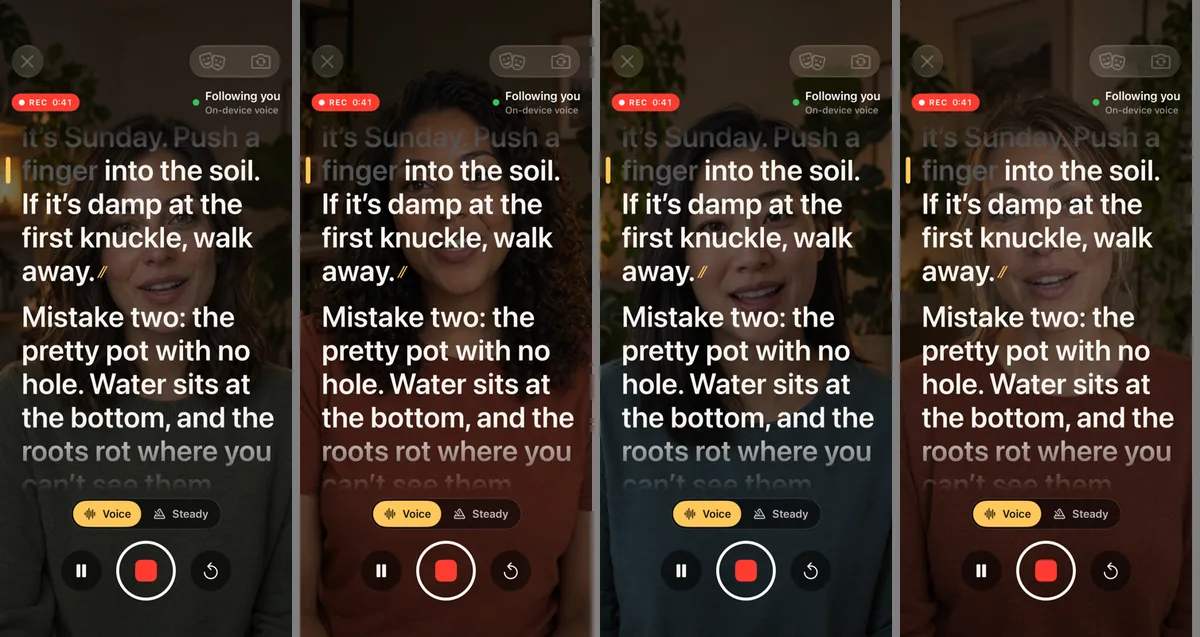
Where these screens appear outside the App Store, on the Fold Cue page here and on applestan.com, the caption says it’s an AI-generated stand-in for the camera picture. The point of a screenshot is to show what the app does, not to pretend the simulator has a camera.
Shots that came out differently every time
Some runs produced the right screen, and some caught it a moment too early, before the debug state had put it into the right state: idle, at the start of the take, sometimes with the simulator’s no-camera message showing. Two causes turned up.
The first was the speech model. On launch the capture screen checks whether the on-device speech model is available, and in the simulator that check took a different amount of time on every run. The debug state that puts the screen into “recording, following, paused” was applied after it, so the screenshot sometimes fired first. The store-screenshot flag now skips that check, because the simulator has no speech model to find anyway, and the next run came out right.
The second was simpler: the very first launch after installing is slow, and nothing about it is representative, so a shot taken on that launch isn’t one to keep.
Poses by hand, and a screen on its side
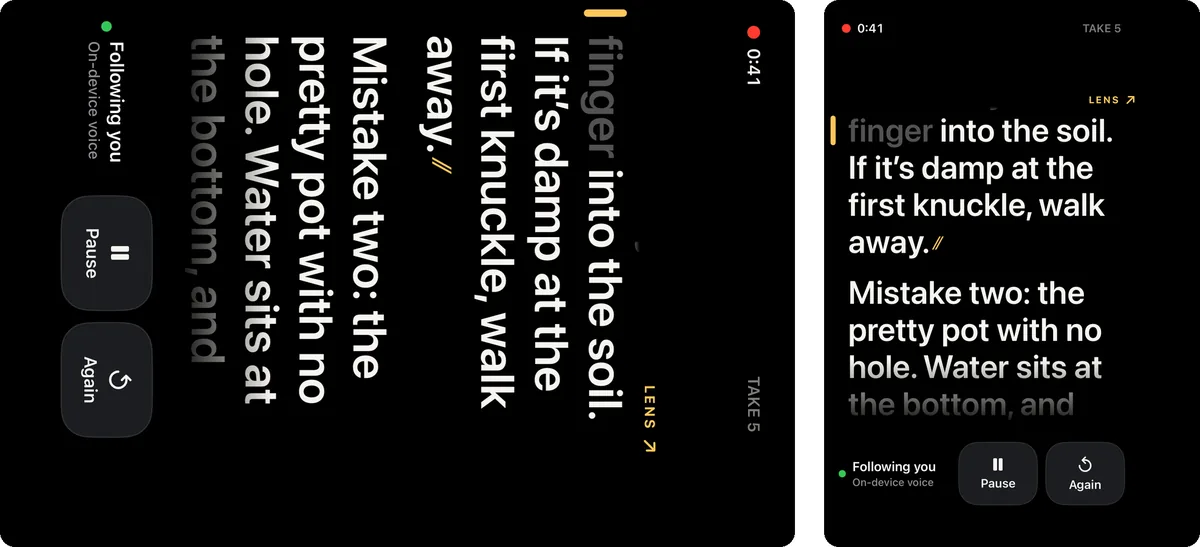
I still haven’t found a command-line way to put the Duo simulator into a pose. Device Hub, by hand, is the only way I know, and shutting the simulator down resets the pose to closed. So the screenshot runs were grouped by pose: set it once in Device Hub, then shoot everything that belongs to it.
In the open pose the outer screen does render the camera capture accessory, which is the prompter facing the person being filmed. But the screenshot comes out on its side, so it has to be turned a quarter before it’s any use.
Captions in the app’s own style
The text on the framed screenshots borrows Fold Cue’s own idea. The first words of each headline are grey, like words the speaker has already said, the rest are white, and an amber bar marks the reading line. Each frame is a small HTML page rendered by headless Chrome at exactly the size App Store Connect asks for, so changing a headline is a text edit and a re-run rather than an evening in a design tool.
German needed more work than translation. Direct translations of several headlines needed an extra line and crowded the screenshot, so the German ones got rewritten shorter, rather than squeezed.
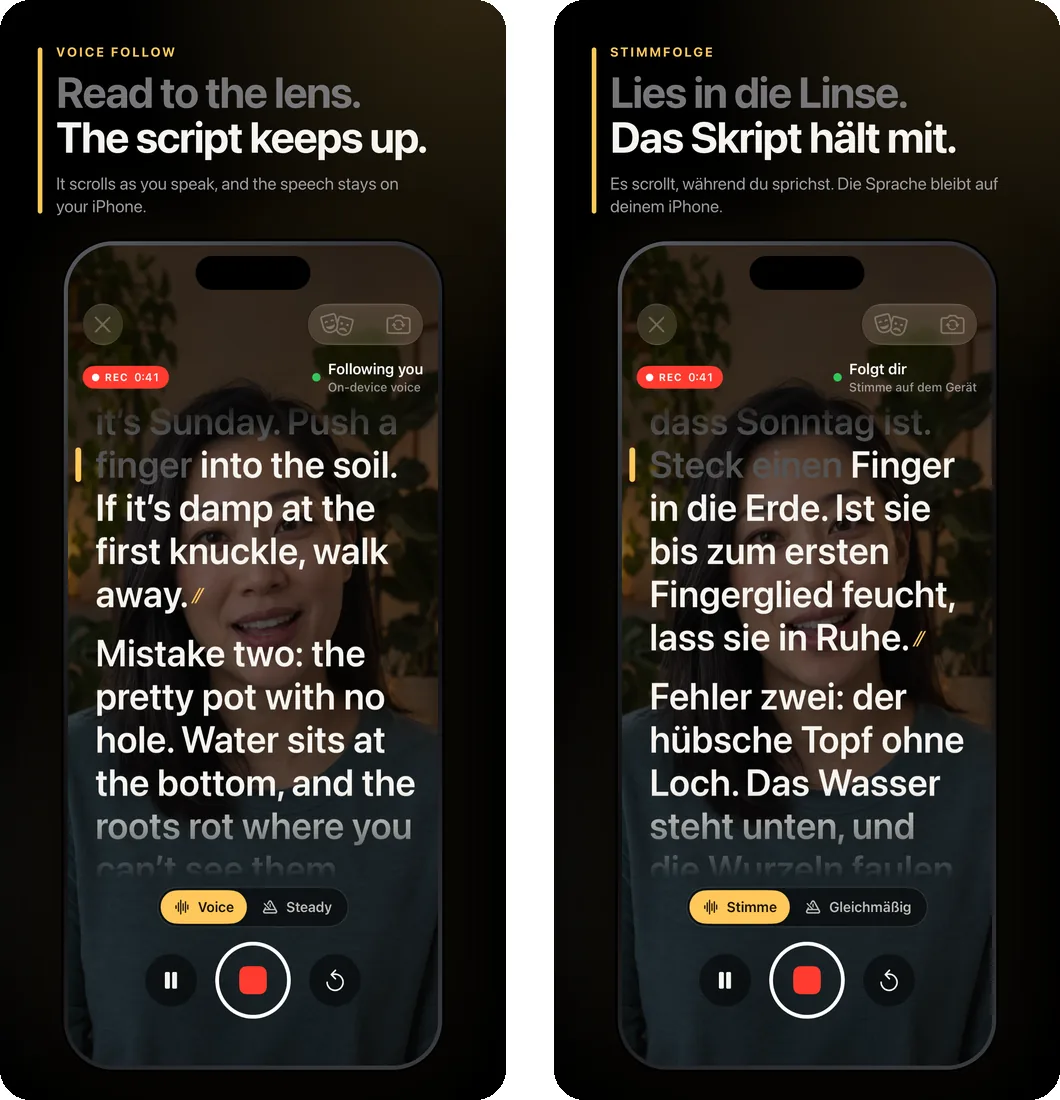
The German paywall had its own surprise: it showed a dollar price. The simulator loads the in-app purchase for its US storefront, whatever language the app is in. Another debug argument now puts the real German price from App Store Connect on the button, so the German screenshot shows what a German customer will actually see.
The render I didn’t use
The first iPhone Duo screenshot was my favourite: a 3D render of the Duo standing up, with Fold Cue’s real interface on its outer screen. I dropped it from the App Store set. App Review’s guidelines ask for screenshots that show the app in use, and a render of the hardware felt like it was asking for a rejection. That’s my judgement, not anything Apple has said about this case.
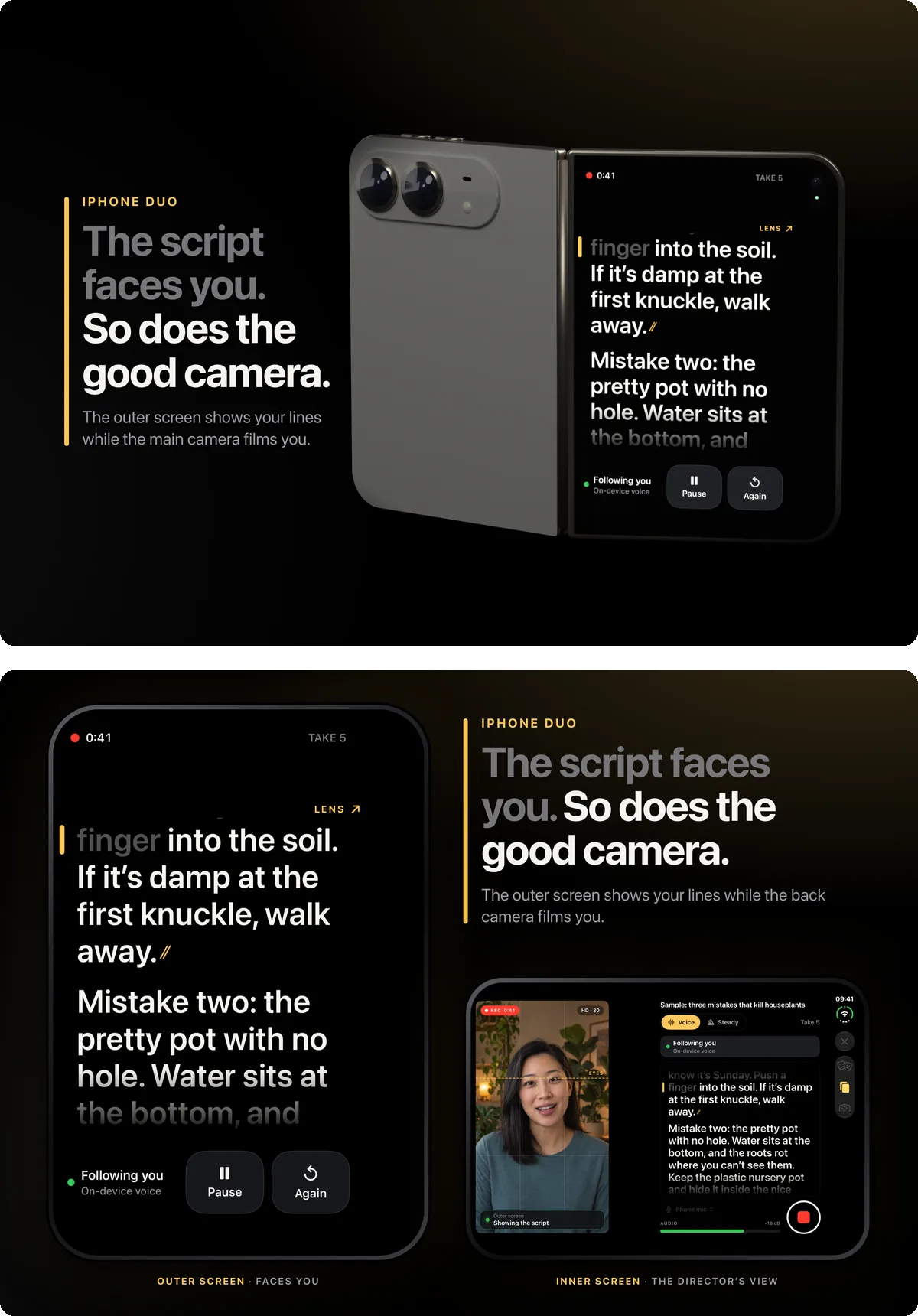
The replacement shows the outer screen and the inner director’s view side by side, with nothing in it but the real interface. On the websites the render is fine, because nobody mistakes a web page for a screenshot of the app, and it’s still the clearest picture of why the app exists.
What’s still not shown, because it isn’t known
None of this changes what’s been tested. The screenshots show Fold Cue in the simulator. Its behaviour on a real iPhone Duo, the outer screen during a take and the stand guide, still hasn’t run on the hardware. The Final Cut Pro export hasn’t been opened in Final Cut yet, and voice follow hasn’t been tested with a range of real voices. The screenshots are accurate about the interface. They can’t be more accurate than that, and I’d rather say so here than let a good-looking picture imply otherwise.
The hardest thing to capture in the end wasn’t the camera. It was making sure the picture in place of it didn’t claim anything the app hasn’t done yet.