Designing Fold Cue around an outer screen I can't test yet
Fold Cue's best feature on iPhone Duo is the script on the outer screen, beside the camera. The system decides when that screen is mine, and I won't hold a Duo until it goes on sale. So the app is designed to be fine without it.
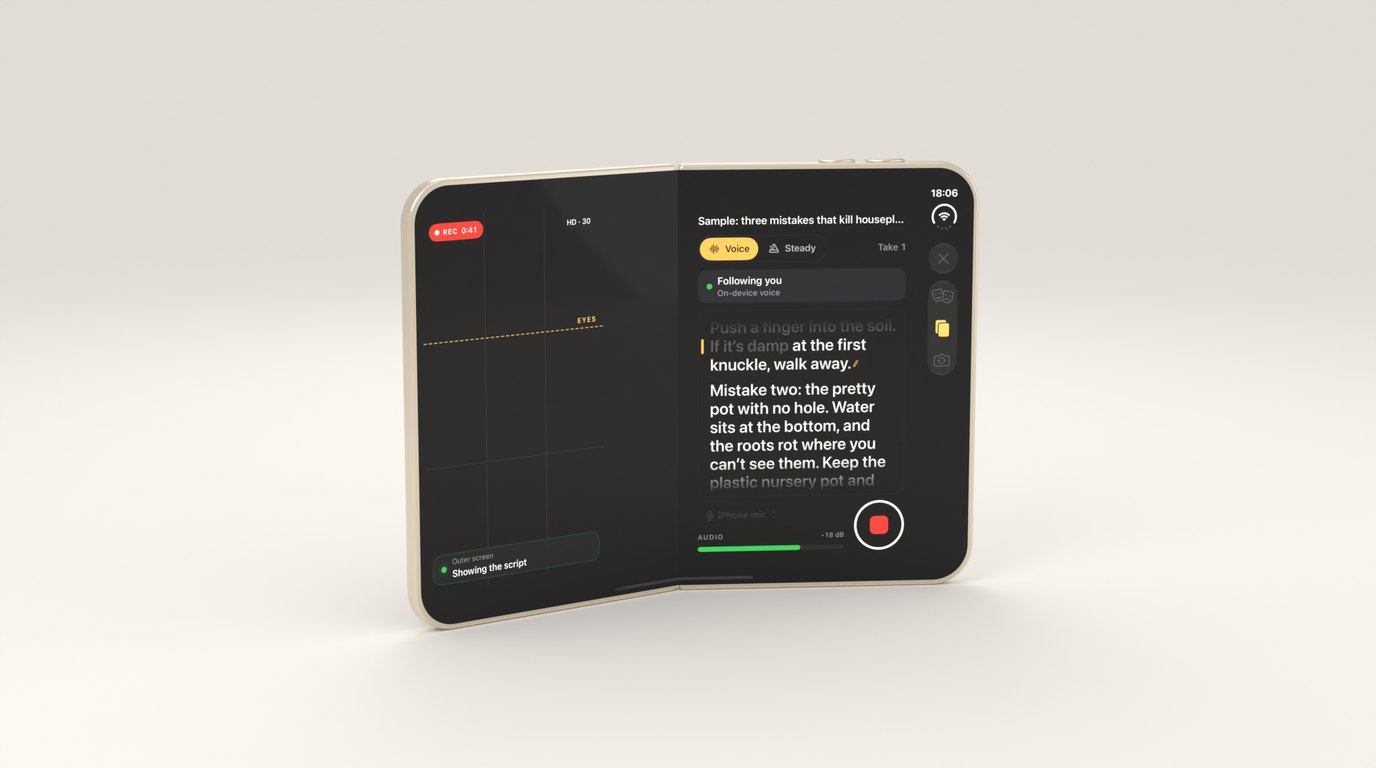
The reason Fold Cue exists is one pose. Stand iPhone Duo up like a book with the backs towards you, and the outer screen sits right beside the main camera. Put the script there and you read straight into the lens, while the best camera on the phone films you and whoever is holding it sees a director’s view on the inside.
It’s also the one part of the app I can’t test. Apps only get the outer screen through a camera capture accessory, the system decides whether to show it, and the simulator has no camera. I wrote about that rule when I first read the SDK. This post is about what it did to the design once I was building on it, with a device I won’t hold until 23 October.
Everything below is implemented and seen working in Apple’s iPhone Duo simulator, in the flat and closed poses. None of it has run on a real Duo yet.
The outer screen is an enhancement
The accessory is only a few lines of SwiftUI, attached to the capture screen and nowhere else:
content.sceneAccessory {
    CameraCaptureAccessory(isEnabled: $isEnabled) {
        OuterPrompterView(model: model)
    }
    .onAvailabilityChange { available in
        Task { @MainActor in model.accessoryAvailable = available }
    }
}
The interesting line is the last one. The system can decline to show the accessory, or withdraw it mid-take, and the app finds out through that callback. So the design question was never “how does the outer screen look”. It was “what happens to a take when the outer screen goes away”.
The answer is that nothing happens to the take. Recording never depends on the accessory. The inner screen always carries a copy of the script, and when the outer one isn’t showing it, that copy grows to fill its side and becomes the prompter:
/// The outer screen isn't showing the script, so the mirror grows.
private var fallbackActive: Bool {
    model.isLive && (!model.accessoryAvailable || !settings.outerScriptOn)
}
Everything you need mid-take is on the inner screen too, for the same reason. Apple’s guidance for accessory content is minimal interaction, and the person reading is standing a little way back anyway, so the outer screen has the script, a status line and at most two big buttons. You can’t drag the text with a finger out there, but a Bluetooth keyboard or a page-turner still moves it.
One model for every screen
The outer prompter, the inner director’s view and the plain prompter on every other iPhone all read the same @Observable capture model. Apple’s article on the accessory recommends sharing the model rather than passing messages between scenes, and it made the fallback almost free: when the accessory disappears there’s no state to hand over, because there was only ever one copy of it.
That model is a state machine that every screen draws from: ready, checking the microphone, counting down, rolling, paused, saved, interrupted. “Hold on” pauses the script, never the camera.
Two layouts, chosen by who is looking
The inner screen has two jobs, and which one depends on which camera is recording.
With the main camera, someone else is usually holding the phone, or it’s standing on a table facing you. You read the outer screen, so the inner screen belongs to the operator: the framing on one side, and the script, the sound level, the takes and the record button on the other. That’s the pattern Apple shows in its own camera talk.
With the inner front camera, you’re filming yourself on the big screen. Now the inner screen is for you, so its right-hand page becomes one large page of script with the reading line just under the lens.
The layout is chosen by the camera, not by the device. On any other iPhone the same views collapse into a front-camera prompter with the script just under the camera.
Size classes nearly identify the Duo
My first rule was “regular width means the Duo’s inner screen”. It isn’t true. A large iPhone in landscape is regular width too, so on my own phone every rotation switched to the director layout and the rear camera, and each switch reconfigured the camera. The screen froze while it did.
The fix was to require regular width and regular height, which among iPhones only the Duo’s inner screen has. The Duo-only APIs sit behind if #available(iOS 27.1, *), and there’s no device-model check anywhere. It’s a small thing, but it’s the difference between an app that adapts and one that guesses.
The fold is a region, and sometimes it isn’t there
The fold comes from the runtime, as a reserved region of kind .division. I expected to keep content off it all the time. Then the simulator reported it as inactive whenever the Duo was flat, and that turns out to be the point: flat, the inner screen is one continuous display, and there’s nothing to avoid. The fold only matters while the device is folded.
So content steps off the hinge only while that region is active. reservedRegions(kind:) returns only active regions unless you ask for inactive ones too, so the loop doesn’t need its own check:
// Active divisions only: the fold matters while the Duo is folded.
// Flat, it's one continuous screen and reports the division inactive.
for d in geo.reservedRegions(kind: .division).map(\.frame)
where d.maxX > 0 && d.minX < width {
    if d.midX < width / 2 { insets.leading = max(insets.leading, d.maxX + spacing) }
    else { insets.trailing = max(insets.trailing, width - d.minX + spacing) }
}
Two more surprises from the same place. ArrangementView splits the safe width, not the screen at the fold, so its two panes don’t necessarily meet at the hinge. I stopped trying to force a split ratio to make them. And the inner camera sits under the display, so it only occludes the screen while it’s recording, and the simulator always reports it inactive. Only the reading layout clears the lens, because only that layout is used while the inner camera films, and it clears it even when the region says it’s inactive.
A debug launch argument outlines every reserved region on screen, in one colour for the fold and another for the cameras, with whether each is active. It was the quickest way to stop guessing where the hardware was.
System containers everywhere else
Outside the capture screen, Fold Cue uses the containers Apple already adapted to the fold. Scripts, takes and settings are ordinary split views that collapse to stacks on a phone. Onboarding is an ArrangementView spread. The take review uses plain stacks, because an ArrangementView inside a list or a scroll view is exactly what the documentation tells you not to do. Sheets stay system sheets.
I’d planned custom layouts for several of these screens. Each time, the system container already did the right thing on the fold, and my version would have been one more thing to verify on hardware I don’t have.
A stand guide that says it’s a guess
Standing the Duo up only works at some angles. Too closed and it tips; too open and the camera and the outer screen aren’t square to you. So Fold Cue reads the hinge with onHingeChange and suggests a range of angles to stand it at, with “open it a little wider” or “close it a little” until you’re there.
That range is a starting point, and the code says so. I’ll only know the real one when I can stand a real Duo on a real desk. It’s also set-up help and nothing more: no part of recording depends on the hinge.
What the simulator can and can’t tell you
The iPhone Duo simulator is good for layout and useless for the camera. The pose can only be set by hand in Device Hub, and only the awake display renders. It has no camera and no speech model, so the capture screen falls back to steady scroll with a message saying why. That fallback earned its keep in testing long before any user sees it.
To get useful screenshots anyway, debug builds take launch arguments that put the app straight into a state: the capture screen mid-take, paused, counting down, the reading layout, seeded takes, the reserved-region outlines. Combined with the simulator’s screenshot command for each display, that was enough to review every screen on both displays without being able to tap either. Several real bugs turned up that way, like text running under the inner camera and controls overlapping the script.
The list of things that need a real Duo is short and specific: whether the accessory shows reliably when the phone is standing, the director’s view with an actual camera image in it, which rear camera really faces you, and the stand angle.
Designing the fallback first felt like pessimism at the time. It’s the reason I’m not worried about the list.