iPhone Duo for developers
What an app can and can't do on iPhone Duo, in one place. I checked it against the iOS 27.1 SDK headers, the Duo simulator and Apple's own pages. Last checked . Where something is my inference rather than Apple's statement, I say so.
The two displays
Design in points and let the system do the rest. Apple describes the inner display as regular width, like an iPad, and the outer display as compact width, like any other iPhone.
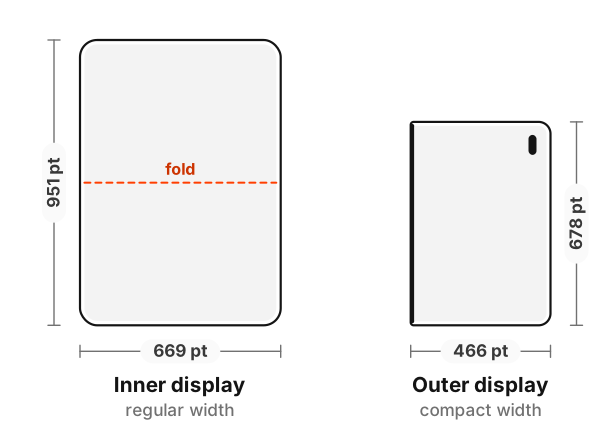
| Inner display | Outer display | |
|---|---|---|
| Points (portrait) | 669 × 951 pt | 466 × 678 pt |
| Scale | @3x | @3x |
| Rendered pixels | 2007 × 2853 | 1398 × 2034 |
| Panel, per Apple's spec sheet | 1878 × 2670, 430 ppi, 7.6-inch | 1398 × 2034, 460 ppi, 5.4-inch |
| Size classes | regular width | compact width |
| App Store screenshots | 2007 × 2853 or 2853 × 2007 | 1398 × 2034 or 2034 × 1398 |
The outer display renders at exactly its panel resolution. The inner display renders larger than its panel
and, as far as I can tell, is scaled down onto it, which is what iPhone 6 Plus did. That is my reading of the
numbers, not something Apple states. The practical rule is the same either way: lay out in points, read sizes
from your scene or view, and never from UIScreen.main, which the SDK has marked deprecated since iOS 26.
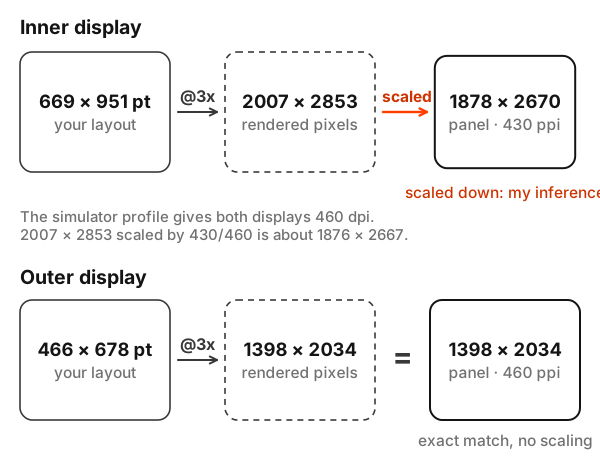
The strongest evidence for the scale-down is in the simulator's own display profile, which describes both displays at 460 dpi. Scale the inner display's rendered 2007 × 2853 from 460 to the panel's 430 ppi and you get about 1876 × 2667, within a few pixels of the 1878 × 2670 panel. So the inner display most likely renders at the outer display's density and is downsampled to its panel. That is still my inference.
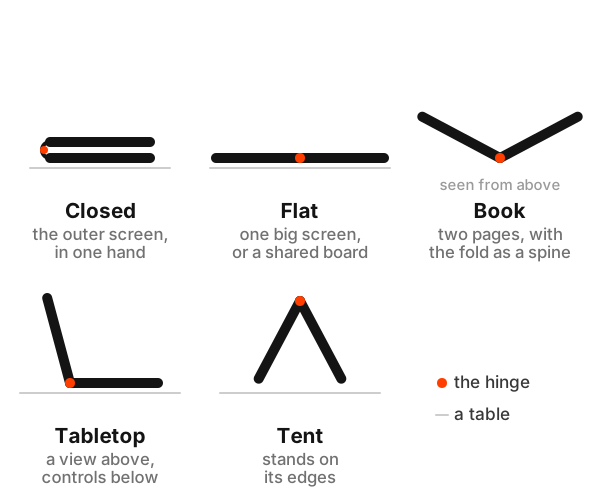
Open, the device is wider than it is tall, so the natural open pose is the inner display in landscape, with the fold running top to bottom. Turned the other way, the fold runs across the middle. Partly folded like that and set down, it is tabletop pose.
Reading the hinge
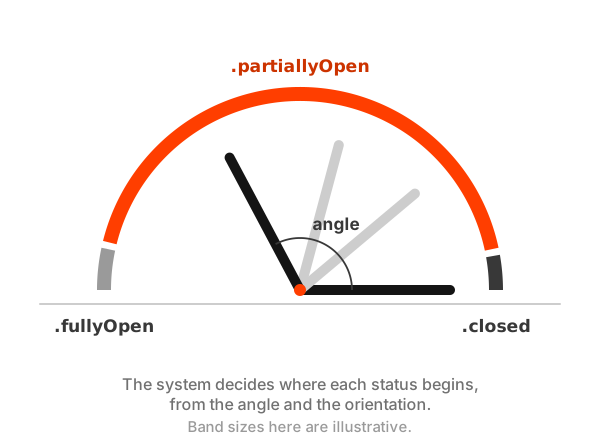
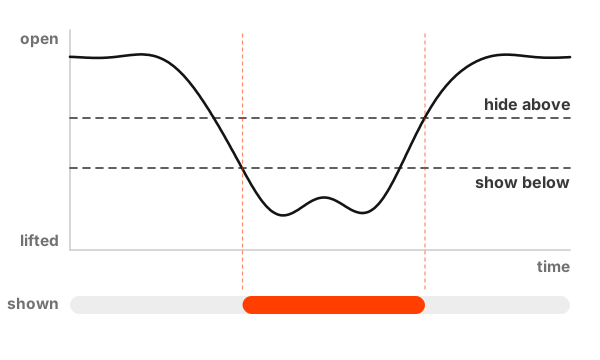
Public API, and I found no entitlement requirement. Both frameworks deliver a status and a continuous angle.
| SwiftUI | UIKit | |
|---|---|---|
| Observe | .onHingeChange { old, new in … } | UIHingeInteraction(updateHandler:), added with addInteraction |
| Value | DeviceHingeContext.hinge: DeviceHinge? | UIHingeInteraction.Update.hinge: UIHinge? |
| Status | .closed, .partiallyOpen, .fullyOpen | the same, plus .unknown |
| Angle | angle: Angle | angle: CGFloat, in radians |
| No hinge | hinge == nil | hinge == nil when the view leaves a hierarchy with hinge updates |
- Apple's own doc comment: the rate and granularity of angle updates are system policy and can change. Don't depend on a frequency or a precision.
- If you only need open or closed, use
status. Apple determines it from the angle and the device orientation. - A disabled
UIHingeInteractiondoesn't queue updates. Re-enabling it delivers the current state, if one is available. - There is no hinge API in Core Motion, Game Controller or Metal. Games read it through UIKit or SwiftUI.
- Apple positions the hinge for interactions and effects. For layout, use the fold region below.
The fold and the cameras as regions
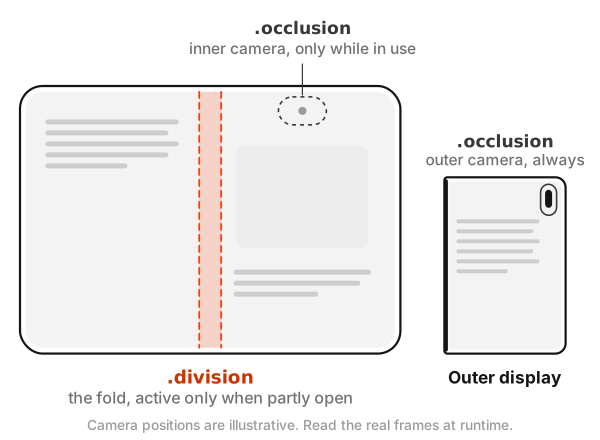
Reserved regions describe parts of your view that something else owns. Query them from a
GeometryProxy in SwiftUI or from a UIView in UIKit.
| Kind | What it is | When it's active |
|---|---|---|
.division | The folding region. Split content into two regions either side of it. | Only when partly open. Flat, it is inactive. |
.occlusion | An area an element covers. On iPhone Duo, the front cameras. | The outer camera always. The inner camera sits under the display and is only reserved while it is in use. |
- SwiftUI:
proxy.reservedRegions(kind: .division, options: [.includeInactive]). Each region has aframeincluding margins, themarginsandisActive. - Pass
.includeInactiveto know where the fold will be before it appears, for decisions like an even number of grid columns. - In SwiftUI, frames are mirrored for right-to-left layouts by default. Pass
layoutDirectionBehavior: .fixedfor the hardware position. - Alerts, sheets, context menus and popovers move away from the fold on their own, and split views adjust their column widths. Scrolling content can cross the fold. Custom interactive views need you to keep them clear of it.
Layout and vertical bars
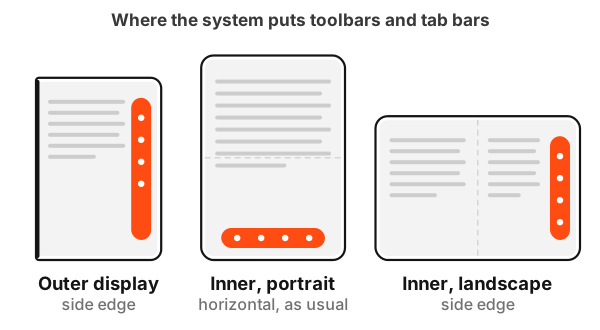
ArrangementView(primary:secondary:)in SwiftUI andUIArrangementViewControllerin UIKit arrange two views and land them either side of the fold. Styles:.splitand.overlay, plus.automaticin SwiftUI, which resolves to split. Avoid putting them inside a navigation split view, a list or a scroll view.- On the outer display, and on the inner display in landscape, the system moves navigation bars, toolbars and tab bars to the side edge for most full-width views. Inner portrait keeps horizontal bars. There are exceptions: inspectors stay horizontal, and in a split view only the detail column goes vertical.
- Only system bars move. Hand-built bar views stay where you put them.
- A toolbar item needs an icon to appear in a vertical bar. Text-only items and custom views stay horizontal. Give items a title as well, for the overflow menu.
- To opt a screen out:
toolbarVerticalBehavior(.disabled)in SwiftUI, or overridepreferredVerticalBarBehaviorin UIKit. To read the side: thetoolbarVerticalEdgeenvironment value in SwiftUI, or theverticalBarEdgetrait in UIKit. - Safe areas are often asymmetric. Inset by each edge, never by one side doubled.
- Don't make layout decisions from
userInterfaceIdiomor orientation. In the simulator, the Duo reports the phone idiom, even on the inner display.
The outer screen rule
Currently, the only way to use both displays at once is a scene accessory registered for camera capture:
CameraCaptureAccessory in SwiftUI, or UISceneAccessory.cameraCapture(sceneConfiguration:) with
registerSceneAccessory(_:) in UIKit. The content can be interactive.
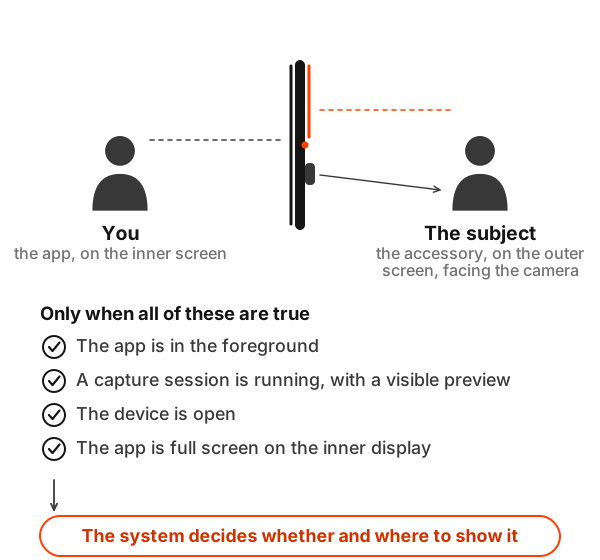
- It can appear only while the app is in the foreground with an active camera capture session, the device is open, and your UI is full screen on the inner display.
- The system decides whether and where to show it. Treat it as an enhancement.
- An Apple engineer on the developer forums: camera cases are the only supported and intended use for both displays at present, and a session with only a camera input and no preview on either display isn't supported.
- Apps can't open new windows on the outer display.
- The simulator has no camera, so this needs a real device.
Cameras
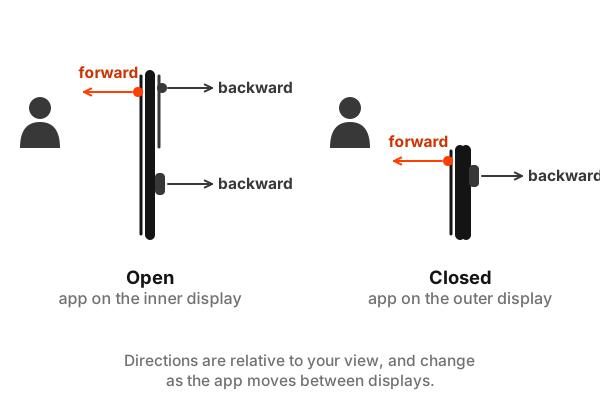
- Existing front camera discovery returns a virtual front camera that follows your app between displays. Front camera apps keep working unchanged.
- The physical front cameras are
.builtInOuterUltraWideCameraand.builtInInnerUltraWideCamera, found only through a discovery session. Depth needs a physical camera. AVCaptureDeviceDirectionCoordinator(view:deviceTypes:changeHandler:)in AVKit tells you which cameras face forward and which face backward relative to a view, and updates on fold and unfold. Include the rear cameras: Apple notes one can end up facing the person when they open or close the device, or when your view moves to a display facing the other way.- Swap one video input inside
beginConfiguration()andcommitConfiguration()rather than running both. A multi-camera session works, but Apple recommends a single input. - Decide mirroring from the direction map. Set
automaticallyAdjustsVideoMirroring = falsebeforeisVideoMirrored.
How older builds run
| Built with | On iPhone Duo |
|---|---|
| iOS 26 SDK or earlier | Closed, stays clear of the status bar and the camera. Open, runs at a familiar size and aspect ratio. |
| iOS 27.0 SDK | Extends beside the status bar on the inner display. |
| iOS 27.1 SDK | Edge to edge, with vertical bars. |
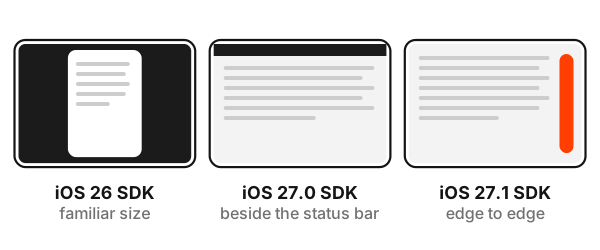
Apple says the inner display may not honour your supported interface orientations and scales your app instead, including in Split View. Games may lock orientation but should fill the screen in every pose.
TestFlight and the App Store
- Builds made with the Xcode 27.1 beta and the iOS 27.1 beta SDK can go to internal and external TestFlight testing.
- Apple hasn't announced when App Store submissions built with the iOS 27.1 SDK open. The usual pattern is the release candidate, which is my expectation, not Apple's statement.
- Screenshot sizes are in the display table above. App Store Connect doesn't accept them for this device yet.
- I found no official badge. My advice: say the app is built for iPhone Duo in the description or release notes, and avoid anything that looks like an Apple badge.
The simulator
- The Duo simulator ships in Xcode 27.1 beta with the iOS 27.1 runtime. Install the beta beside the release Xcode and switch with
DEVELOPER_DIR. - In Xcode 27, simulators run in Device Hub, at
Contents/Applications/DeviceHub.app. There is no Simulator.app any more, so scripts pointing at the old path break. - Open, close, rotate and fold from the controls in Device Hub. I found no
simctlcommand for the pose or the hinge, so Apple gives you no scripted way to set the pose or hinge angle. Third-party tools can set the angle through a private simulator interface, which I wouldn't build CI on. Display power can be scripted, withsimctl io … screenConfig. - Screenshots:
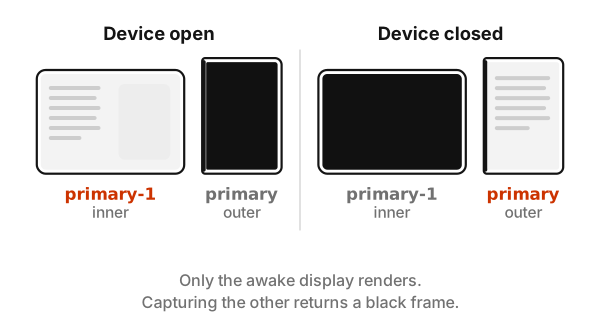
simctl io … screenshot --display=primaryis the outer display,--display=primary-1the inner.--displayalso takes screen numbers, but the inner display is screen 3, because TV-out is screen 2, so the names are safer. In my testing, only the awake display renders, and the other captures black. - Known issues in the beta: the first launch can take several minutes, StandBy isn't available, and most app extensions can't run or be debugged.
Quick answers
- What is the iPhone Duo screen size in points?
- The inner display is 669 × 951 points in portrait at @3x, with regular width. The outer display is 466 × 678 points at @3x, with compact width. Lay out in points and read sizes from your scene or view, never from
UIScreen.main. - What screenshot sizes does the App Store use for iPhone Duo?
- Inner display: 2007 × 2853 pixels, or 2853 × 2007 in landscape. Outer display: 1398 × 2034 pixels, or 2034 × 1398. App Store Connect does not accept screenshots for this device yet.
- How do I read the iPhone Duo hinge angle?
- In SwiftUI use
.onHingeChange, and in UIKit add aUIHingeInteraction. Both give a status of closed, partially open or fully open, plus a continuous angle. Apple makes no promise about how often the angle updates, so do not depend on a frequency or a precision. - How do I keep content out of the fold on iPhone Duo?
- Query the fold as a reserved region with
reservedRegions(kind: .division)from aGeometryProxyin SwiftUI or from aUIViewin UIKit. It is only active when the device is partly open.ArrangementViewin SwiftUI andUIArrangementViewControllerin UIKit place two views either side of it. - Can an app show its own content on iPhone Duo's outer screen?
- Only while it is using the camera. Register a camera capture accessory with
CameraCaptureAccessoryin SwiftUI orUISceneAccessory.cameraCapturein UIKit. It can appear while the app is in the foreground with a capture session and a visible preview, the device is open and the app is full screen on the inner display. Apps cannot open other windows on the outer display. - Which Xcode and SDK do I need for iPhone Duo?
- Xcode 27.1 beta with the iOS 27.1 SDK. It includes the iPhone Duo simulator, which runs in Device Hub. Builds made with it can go to internal and external TestFlight testing.
Apple's documentation
- Designing for iPhone Duo (Human Interface Guidelines)
- Preparing your app for iPhone Duo
- onHingeChange and UIHingeInteraction
- Registering a camera capture accessory on iPhone Duo
- Choosing a camera by the direction it faces
- Screenshot specifications
- iPhone Duo for developers, with the tech talks
- iPhone Duo technical specifications
iPhone Duo is a trademark of Apple Inc. This site is independent and is not affiliated with, sponsored by, or endorsed by Apple. Facts last checked September 26, 2026. Spotted something out of date? Tell me.