Uplid can unlock your Mac with Face ID. Here's why it asks the Mac first
Uplid puts your Mac on an iPhone, an iPad or an iPhone Duo: its screen, a Mac keyboard and trackpad, and since 1.1 a terminal for coding agents. It can also type your Mac password at the lock screen after Face ID. The hard part is knowing the lock screen is really there, so Uplid asks the Mac itself before every key.
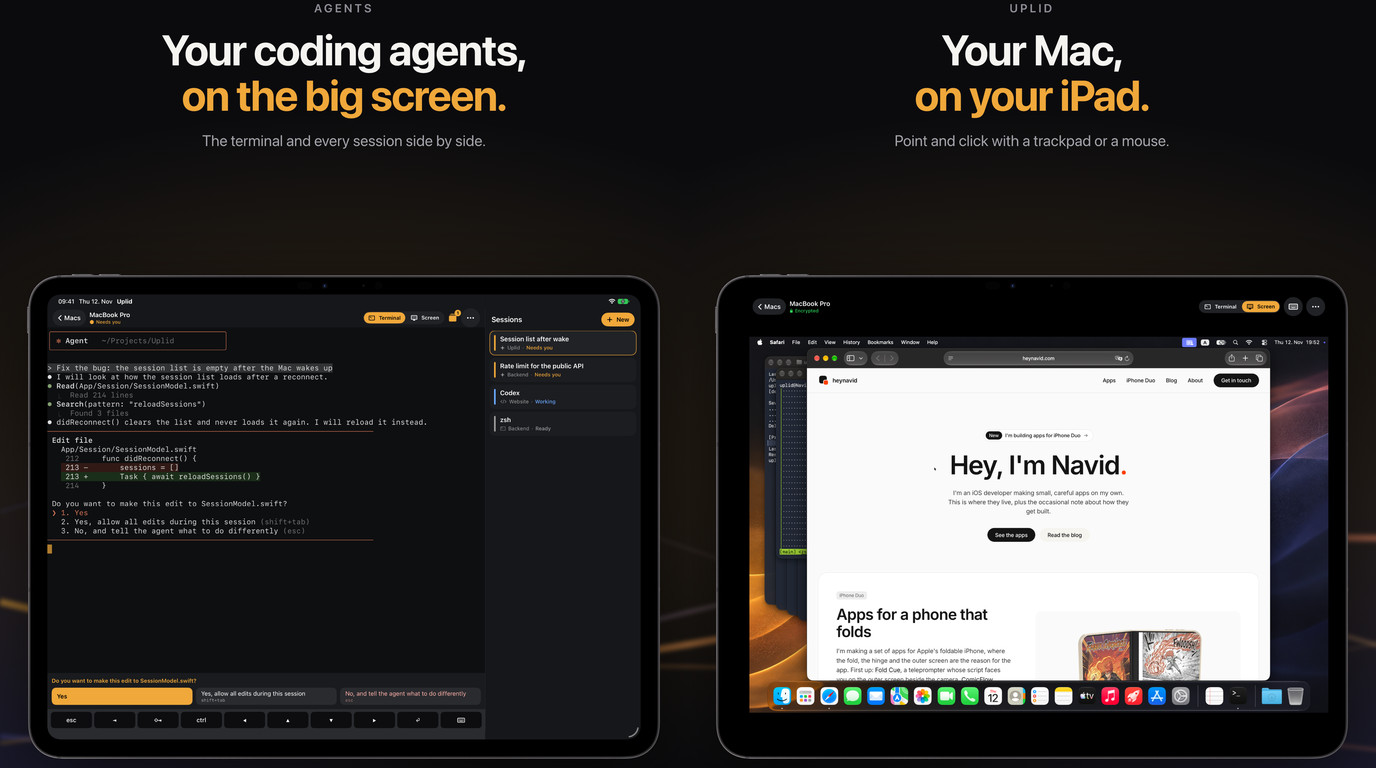
Uplid is my app for using a Mac from an iPhone, an iPad or an iPhone Duo. It shows the Mac’s screen through the Screen Sharing that is built into macOS, so there is no Mac app to install. On iPhone Duo you can stand it up like a small laptop: the Mac on the top half, a Mac keyboard and a Mac trackpad on the bottom half. On other iPhones and on iPad, the picture is the trackpad and the keyboard slides up when you need it.
Since 1.1 it also opens a full terminal on the Mac, through the Remote Login setting that macOS already has, for coding agents such as Claude Code and Codex. You can answer an agent’s question with one tap, and one tap switches between the terminal and the screen of the same Mac.
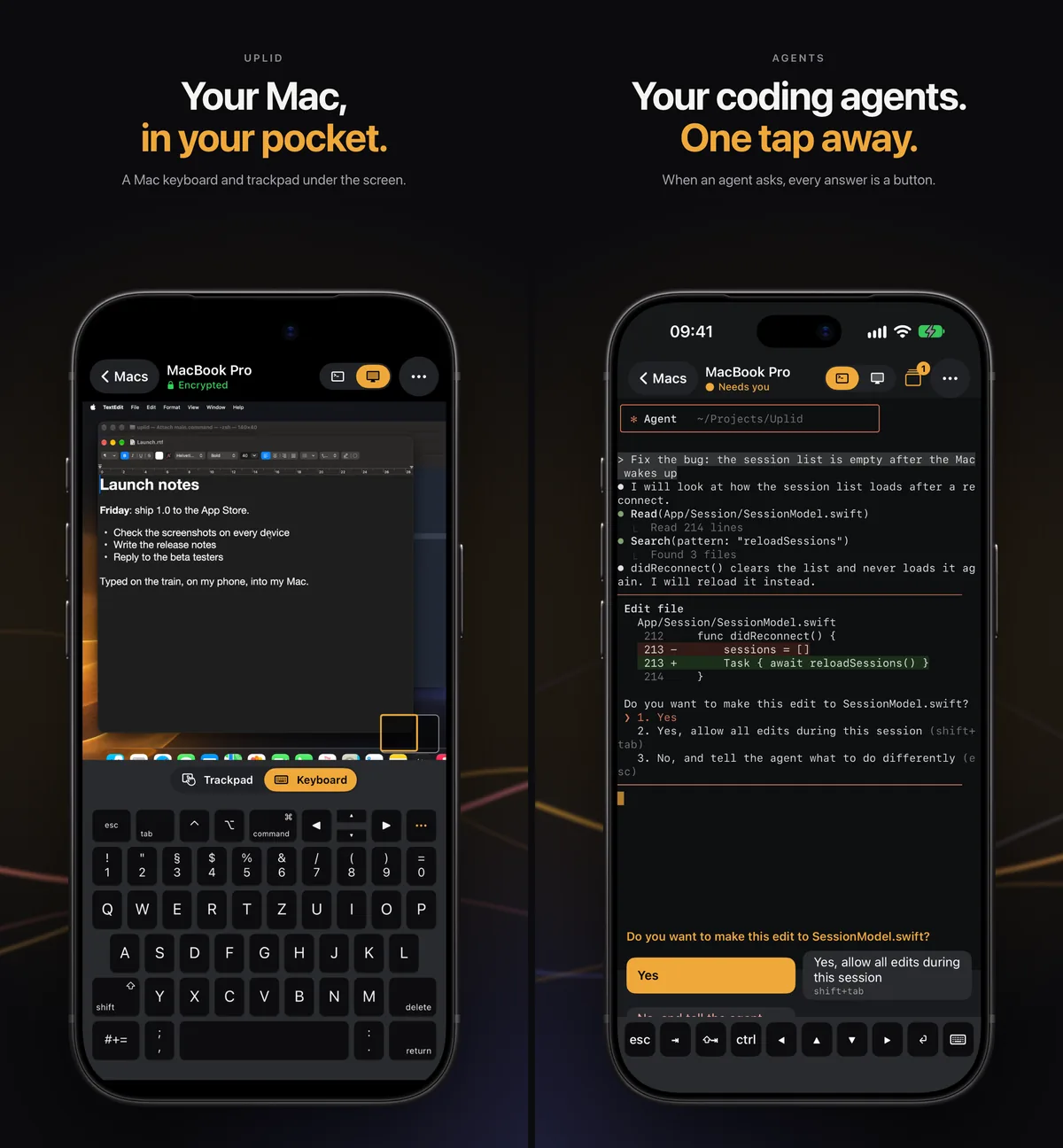
The password for that Mac stays in the Keychain of your device, unlocked with Face ID or Touch ID. That’s how you log in. And it’s what makes a second feature in 1.1 possible: when the Mac is at its lock screen, you tap a button, confirm with Face ID, and Uplid types the password for you.
Typing a password into a remote session is easy to get wrong. The picture you see is a Screen Sharing view, and that picture is not a reliable guide to whether the lock screen is up. So before Uplid types anything, it asks the Mac itself.
Asking the Mac, not the picture
macOS keeps a flag for this, though it doesn’t advertise it. The I/O registry lists the user sessions on the Mac, and while the lock screen shows, the session of that user on the Mac’s real screen gets a flag that says the screen is locked. When the lock screen goes away, the flag goes away too. Reading it needs no admin rights and no permission prompt on the Mac, and the answer only has user names and session flags in it.
Uplid can ask for it because 1.1 already talks SSH to the Mac for the agent terminal. Before it types anything, Uplid runs that one read-only command over SSH and looks for your user.
Apple doesn’t document that flag, so the check is deliberately cautious. It has three answers:
- Locked. Your user is on the Mac’s screen and the flag says locked. Only this answer lets Uplid type on its own.
- Not locked. Your user is on the screen and the flag isn’t there. Uplid types nothing and says why.
- Don’t know. No SSH, your user isn’t logged in, your user isn’t on the Mac’s own screen (fast user switching, or a virtual display), or the answer couldn’t be read. Uplid asks you, and you decide.
No doubt ever turns into “locked”. If the check is unsure, the decision goes to the person holding the phone.
There’s one more rule before the check even runs. Uplid only asks a Mac whose SSH key it already knows and trusts, from an earlier connection. A password should never go to a computer that might not be your Mac, and the key is what tells Uplid it’s talking to the same one.
Checking again, and again
One check at the start isn’t enough, because a lot happens in the second or two of typing. The lock screen can go away. Someone at the Mac can log in by hand. So the button works like this:
- You tap it. Uplid never starts this by itself.
- Face ID or Touch ID, every time.
- The lock check. If it isn’t “locked”, Uplid stops here, or asks you if the answer was “don’t know”.
- Uplid presses Shift to wake the lock screen. Shift types nothing in any app. Keys that arrive while the lock screen is asleep can get lost, so this step, and a click after the next check, make sure the password field is ready.
- Another check. Only on a confirmed lock screen does it click, so the password field is ready.
- Another check. Then the password, one key at a time.
- A last check before Return. If the lock screen went away while the keys went out, Uplid deletes what it typed with Backspace and doesn’t press Return.
- Return. Then Uplid watches for the unlock for a few seconds and tells you the Mac is unlocked, or, if it’s still locked, asks you to check the password saved for this Mac.
It types the password key by key and never pastes it. Uplid shares the clipboard between the phone and the Mac, and a pasted password would stay on the Mac’s clipboard afterwards. It also tries once per tap. A button that retries a password by itself can lock an account after enough wrong tries.
When the answer is “don’t know” and you confirm, Uplid types the password and Return without the checks in between, because it has nothing to check with. That’s your call, and the dialog says it plainly before you make it: type the password only when the lock screen shows in the picture, because if an app is in front, the password goes into that app.
Making the button feel quick
The check has to be fast enough that the button feels like a button. Opening a new SSH connection and logging in again for every check can take a second or two, which is too slow to do several times in one unlock. So one SSH connection stays open for the lock checks of a session, and a check on it takes a fraction of a second.
A lock from inside the session doesn’t send anything that Uplid trusts, so the app also checks every four seconds while the Mac screen is in front. It checks right away when the Mac hides or shows its cursor, because that often happens when the Mac locks and unlocks. That’s a hint to look, not an answer. The answer still comes from the flag.
One thing I like about the way macOS handles this: if the Mac was locked when Uplid connected, macOS locks it again when the session ends. It puts back the state it had at the start. That isn’t something Uplid does, it’s macOS, and for an unlock button it’s a good default. You unlock to do something, you disconnect, and the Mac is locked again.
The button is slower than ten lines of code would be, and sometimes it says it did not type the password when you might have wanted it to. That’s the right trade. Not typing is always safe. Typing in the wrong place isn’t.
If you use your Mac from your phone
The button is in the ⋯ menu as Type Mac Password, and an Unlock Mac button shows over the picture when the check finds the lock screen. The check needs Remote Login turned on in the Mac’s Sharing settings, the same setting the agent terminal uses, and one earlier connection to that Mac from the Agents side, so Uplid already knows and trusts its key.
Uplid is free to download with every feature, in sessions of 15 minutes with a real Mac. Uplid Pro is one purchase of $5.99 for unlimited sessions, with Family Sharing and no subscription. There’s more about the app, and how it folds into a small laptop on iPhone Duo, on the Uplid page.