PhotoStrip takes the location out of a photo and leaves the picture alone
You pick a pile of photos and PhotoStrip resizes, converts, compresses, watermarks or strips their metadata, all on the device. The hard part of stripping GPS and EXIF is leaving the picture exactly as it was. Here's how 1.1 does that, and what 1.2 added around it.
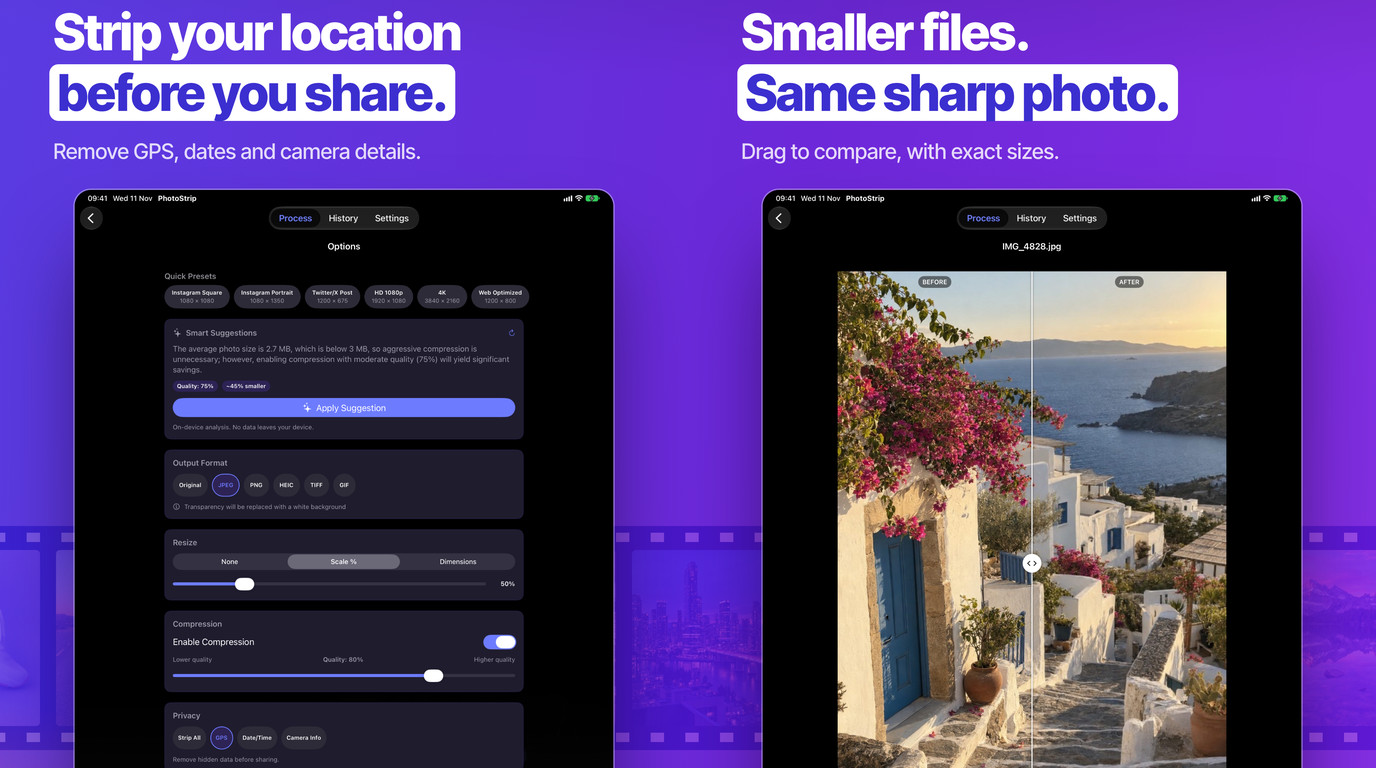
PhotoStrip is my batch photo tool. You pick a pile of photos and it resizes, converts, compresses, watermarks or strips their metadata in one pass, all on the device. No account, and nothing is uploaded.
The job the app is named after is the one people reach for before they share. A photo from an iPhone usually carries a location, a capture date and the camera it was taken with. That’s useful in your own library. It’s less useful on a message, a post or a listing, where you may only want the picture to go out.
So the promise is simple. If all you asked for is “take the location out”, the picture should come back exactly as it went in, just without the location. Date and camera info should stay if you left those on keep. And the file shouldn’t grow. Getting that right on JPEG and HEIC, which is nearly every photo on an iPhone, is harder than it sounds, and it’s what PhotoStrip 1.1 is built around.
Why a strip can change the picture
Apple’s image library has a call that looks made for this. You open the photo, create a new file in the same format, and write the image with the metadata you want removed set to empty. For PNG and GIF the pixels do go through unchanged, because those formats are lossless anyway.
For JPEG and HEIC, that same call decodes the image and compresses it again. A second round of lossy compression is not what you want when you only asked to drop a GPS tag. There is a second wrinkle in JPEG files. When the library writes JPEG metadata, it also adds an XMP copy of the EXIF data by default, a couple of kilobytes. Strip everything from a small photo and the “stripped” file can come out larger than the original.
The other half of the app has the opposite problem to solve. When you resize, compress, convert or watermark a photo, it has to be re-encoded. That new file still needs the original capture date, location and camera info, unless you chose to strip them. Without the date, a processed photo doesn’t land in the right place in your library.
Rewrite the metadata, not the image
ImageIO has a second way to write a file: copy the image source to the destination with new metadata, without decoding anything. It only rewrites the metadata. That’s what PhotoStrip uses now for JPEG, HEIC and TIFF. PNG and GIF still go through the older path, because for lossless formats it’s pixel-identical.
With this path, stripping is about tags rather than a blunt wipe. Each option in the app maps to a list of tags:
- Location covers latitude, longitude, altitude, direction, speed and the positioning error.
- Date and time covers when the photo was taken and digitised, the sub-second parts, the time zone offsets, and the GPS date and time stamps too. Leaving those in would undo the point of removing the date.
- Camera covers make, model and software, and the lens, its serial number, the body serial number, the owner name, and the exposure settings.
The app finds each of those tags in the photo’s metadata and removes it by name. If you only turned off location, the date and camera info stay exactly where they were.
For JPEG, the copy also tells ImageIO to leave out the extra XMP block, so a stripped JPEG can’t grow. TIFF is the exception. It needs XMP to hold on to GPS and the date when you keep them, so it keeps it.
The HEIC catch
“Strip all” is where HEIC needs extra care. HEIC can leave the EXIF block in the file after a single pass that removes every tag by name, and the capture date can survive in that block. A photo that looks clean can still know when it was taken.
The fix is two passes. The first pass removes each category’s tags by name, the same as a selective strip. The second pass opens that result and removes whatever is left. Two kinds of tag are never removed, because they describe how the pixels are stored, not the photo or the person who took it:
- Orientation. iPhone photos are usually stored sideways with a flag that says “turn this upright”. Take the flag away and a portrait photo turns into a landscape one.
- HEIC tiling. The tile size tells the decoder how the image is cut up inside the file. It says nothing about you.
Check the output, and pick privacy if it can’t
After every strip, PhotoStrip reads the output back and checks that the categories you asked to remove are really gone.
If the metadata-only copy leaves something behind, or fails, the app falls back to re-writing the image, which re-compresses it. If that output doesn’t pass the check either, the photo fails with an error instead of being saved as if it were clean. The trade-off is deliberate. A photo that is a little more compressed is a smaller problem than a photo that still has your home’s coordinates in it.
Two rules about file size
The same release added two rules to the rest of the pipeline.
The first one: when no pixels need to change, PhotoStrip doesn’t decode the photo at all. A metadata-only job keeps the original bytes and only rewrites the metadata.
The second one: if re-compressing a photo wouldn’t make it smaller, PhotoStrip keeps the original. An already well-compressed photo run through compression again can come out bigger, and a compressor that hands back a bigger file isn’t doing its job.
And when a photo has to be re-encoded, because you resized it, converted it or added a watermark, its date, location and camera info now come along unless you chose to strip them. The orientation flag is reset, since the pixels are already upright by then, and the stored pixel dimensions follow the new size. Portraits stay upright.
PhotoStrip also only offers output formats iOS can actually write: HEIC, JPEG, PNG, TIFF and GIF. You can still open WebP photos and convert them, and if a WebP photo is set to keep its format, it’s saved as JPEG, or PNG if it has transparency.
What 1.2 added around this
PhotoStrip 1.2 came out on 12 November, mostly for iPhone Duo and iPad layouts: photos and options sit side by side when the Duo is open, a compact layout when it’s closed, and on iPad the thumbnails are bigger. Two smaller changes belong with the strip work.
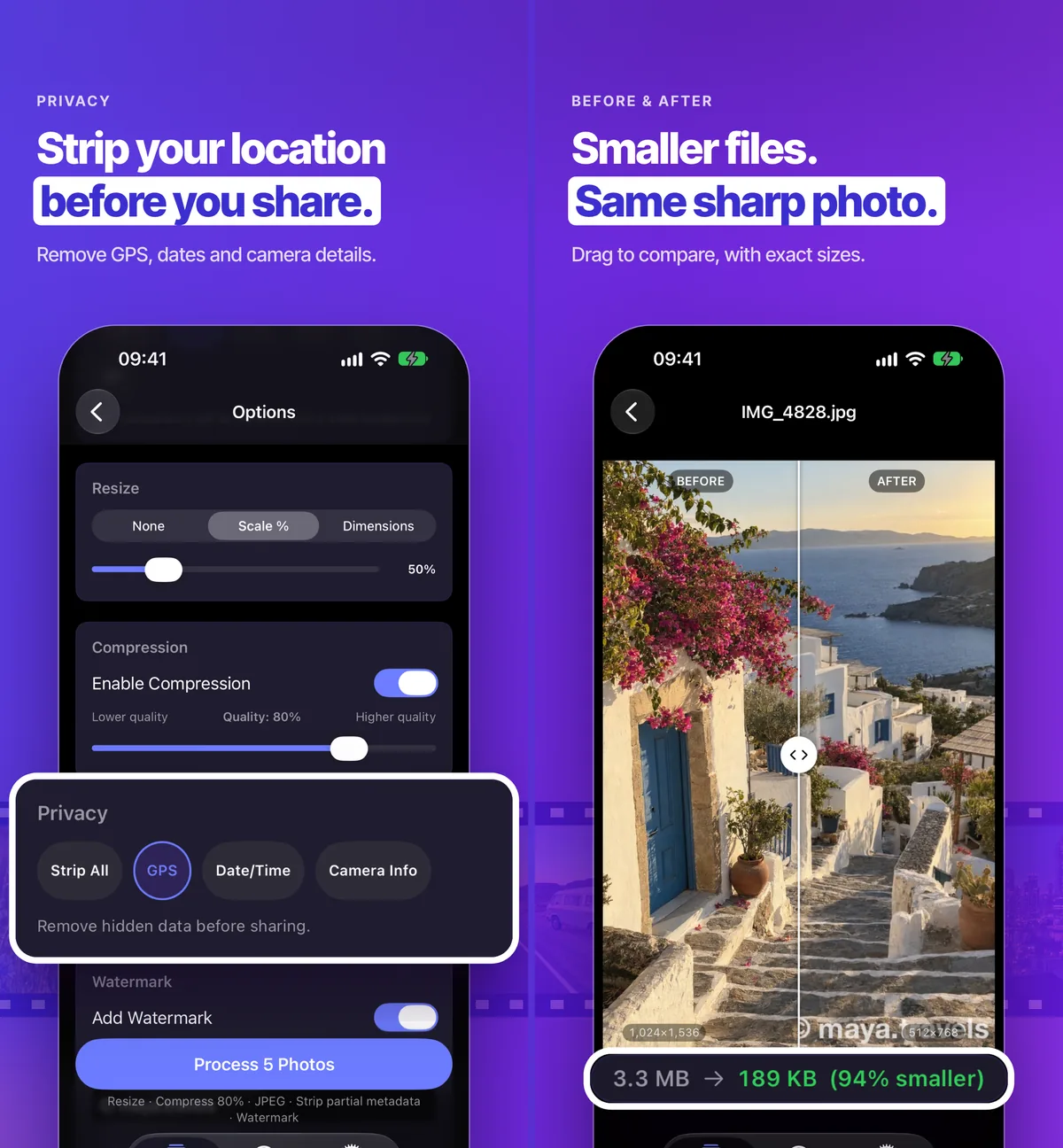
The Process button now waits until you have chosen something to do, so a tap never writes a file that didn’t need to change. And the before and after comparison shows the file sizes right under the photo. After a metadata-only job, the new size is never larger than the old one. After a compress, you can see exactly how much you saved.
If you want to strip location from a pile of photos without anything else changing, PhotoStrip is free for five photos per batch, and a single $4.99 purchase lifts the limit. No subscription.