Mino shrinks the pictures in a PDF and leaves the text alone
Mino is my offline PDF compressor. The easy way to make a PDF small is to turn every page into a picture. Mino doesn't do that. It finds the images inside the file, scales down only the ones that are much sharper than they need to be, and keeps the text as text.
Mino is my PDF compressor for iPhone and iPad. You give it a PDF, pick a quality level, and get a smaller copy back. It also merges and splits PDFs, and all of it happens on the device. Nothing is uploaded, there’s no account, and it costs $2.99 once with no subscription.
The question that shaped the app is a simple one: what does “compress a PDF” actually mean? There’s a quick answer, and it’s the wrong one for most documents.
The shortcut that ruins a document
The most direct way to make any PDF small is to render every page as an image and save those images as a new PDF. You control the resolution and the JPEG quality, so you can hit almost any target size. It works on every file the same way, which is why it’s tempting.
The problem is what it does to everything that isn’t a photo. A contract, a lecture handout or an invoice is mostly text, and in a PDF that text is stored as characters and fonts, drawn fresh at whatever zoom you’re at. Flatten the page into a picture and the text becomes pixels. It goes soft when you zoom in. You can’t search it, select it or copy a line out of it any more. A screen reader has nothing to read. And a page of crisp text turned into a JPEG can easily come out bigger than the original, not smaller.
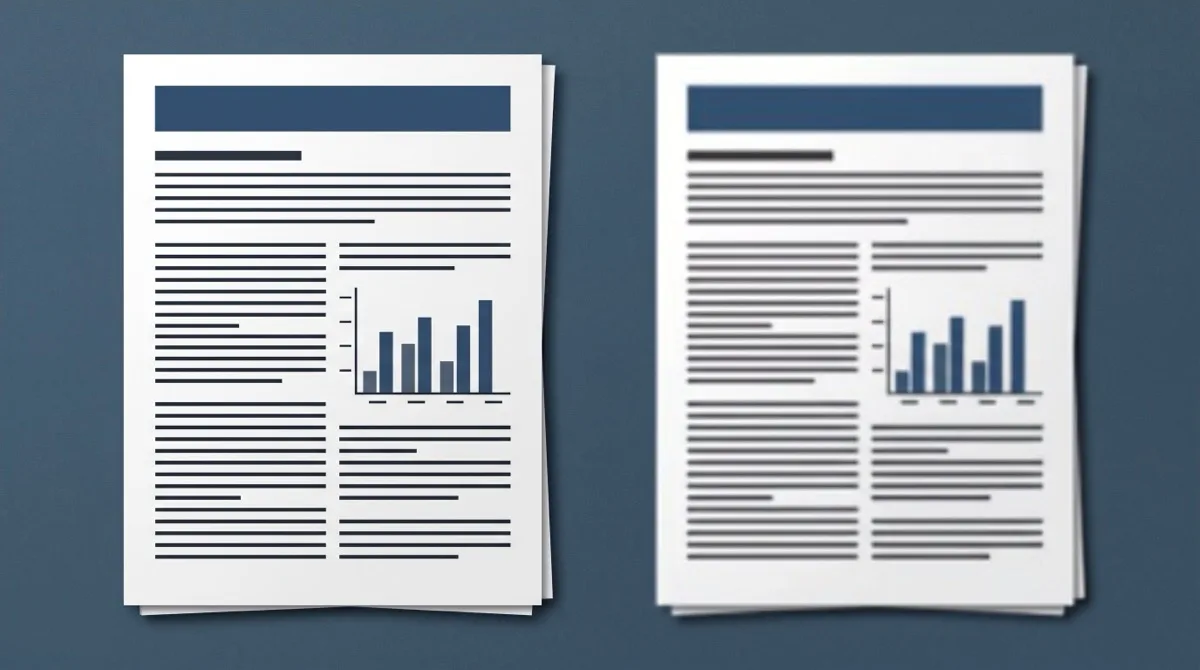
So Mino starts from the opposite end. The text, the vector drawings and the page structure stay exactly what they are. The only thing that gets reworked is the part of the file that’s usually responsible for the size: the images inside it.
Where the bytes usually are
A PDF is a container of objects. Some are page descriptions, some are fonts, and some are embedded images: a scanned page, a photo pasted into a report, a logo, a chart exported as a bitmap. When a PDF is unexpectedly heavy, it’s almost always because of those images. A phone scan or a photo dropped in at full camera resolution carries far more pixels than anyone needs to read it on a screen or print it on an office printer.
Mino is built on MuPDF, the open source PDF engine, and MuPDF can walk through a document and rewrite its images in place. That’s the core of Mino’s compressor. It opens your file, goes through every image, decides whether each one should be scaled down and re-encoded, and then saves the document with everything else carried over.
How the presets decide
Each of Mino’s three presets is two numbers: a target resolution and a JPEG quality.
High Quality aims for 150 DPI at JPEG quality 70. Medium aims for 100 DPI at quality 50. Low aims for 72 DPI at quality 30. Those resolutions are measured the way a printer would, in pixels per inch of the page the image sits on, so a full-page scan and a small logo are judged by how sharp they appear on the page, not by their raw pixel count.
One detail in there does a lot of the work. An image only gets scaled down when it’s more than 50 DPI above the target. On High, that means an image has to be sharper than 200 DPI before Mino touches its resolution. An image at 180 DPI is already close to where it would end up, and scaling it to 150 would mean another round of resampling and softening for a modest saving. The headroom keeps the compressor focused on the images that really are oversized, like a 300 DPI scan of a single page, and leaves the ones that are nearly right alone.
When an image is scaled down, Mino averages the pixels rather than just dropping them, which keeps fine lines and small print in a scan from breaking up. The result is saved as a JPEG at the preset’s quality. That applies to images that were stored losslessly too, like a PNG screenshot pasted into a document. At High Quality that’s hard to notice. At Low it can show around sharp edges, which is why Low is described in the app as maximum compression, and High as better quality, larger file.
If none of the presets fit, there’s an Advanced Settings switch on the compress screen. It gives you a slider for image quality and one for the target resolution, so you can set your own pair of numbers.
The part that isn’t images
After the images, Mino saves the document with MuPDF’s most thorough cleanup. It drops objects nothing refers to any more, which piles up in files that have been edited and re-saved many times. It merges duplicates, so a logo that appears on every page of a report as a separate copy gets stored once. Page content, fonts and other data streams are compressed, and the page descriptions are cleaned up and rewritten.
None of that changes how a page looks. For a text-only document this is often all the saving there is, because there were never any big images to shrink.
Why “up to 90%” is the honest way to put it
Mino’s App Store page says PDFs can come out up to 90% smaller, and I’m careful with the “up to”. How much a file shrinks depends entirely on what’s in it.
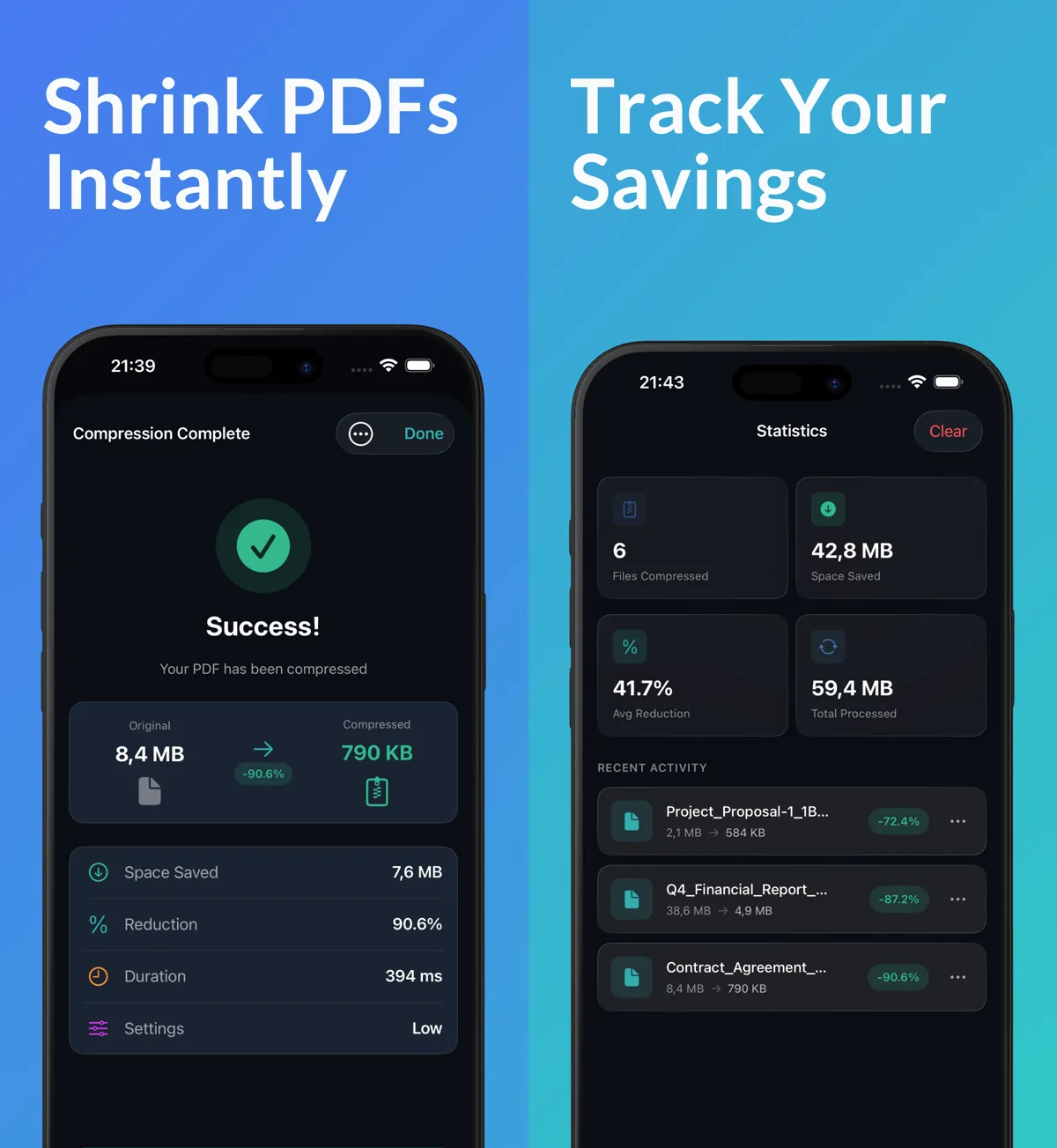
You can see that in the screenshots above. Three of the files in the recent activity list went down by 72.4%, 87.2% and 90.6%. The same statistics screen counts six files with an average reduction of 41.7%. Work that through and the other three files, the ones not shown in the list, saved close to nothing between them. That is what a compressor that leaves text alone looks like. A file full of large images shrinks dramatically. A file that’s already mostly text and fonts has very little a careful compressor can take out without damaging it.
I’d rather show that spread than pretend every file drops by 90%. A tool that always hits 90% is usually doing the page-flattening shortcut, and you find out later when you try to search the document.
Your original is never touched
Compression always writes a new file. Mino saves the result into its own Compressed folder with the original name in the file name, and the PDF you started with stays exactly where it was. You can open both in the built-in viewer and compare them before deciding which one to send. If the Low result looks rougher than you’d like, you run it again on Medium from the same original, instead of compressing an already compressed file a second time.
The same approach carries over to the rest of the app. Mino 1.2 added batch compression, so you can pick several PDFs at once and run them all with the same preset. It added merging, where you drag documents into the order you want and get one PDF out, and splitting, where you pull out a page range or break a file into single pages. Those copy the PDF’s own pages across instead of redrawing them, so text you could search before is still searchable after. There’s also a share extension, so you can send a PDF to Mino from Files, Mail or Safari.
Why it all stays on the phone
The other decision behind Mino is that the work happens where the file already is. A lot of PDF compressors are websites, and the PDFs people most often need to shrink are the ones with the most personal information in them: a signed contract, a scanned ID, a bank statement for a rental application. Those are exactly the files that shouldn’t have to go to someone else’s server just to make an email attachment fit.
MuPDF is fast enough on an iPhone that there’s no reason to. The result screen in the screenshot above shows 394 milliseconds for an 8.4 MB file. Mino’s source code is public on GitHub, and the About screen links to it, so anyone who wants to can check what happens to their file.
If you have a PDF that’s too big to send and you’d like the text to survive the trip, Mino is $2.99 once, with no subscription and no in-app purchases.